



ParentVUE/StudentVUE Menu Information:
Home
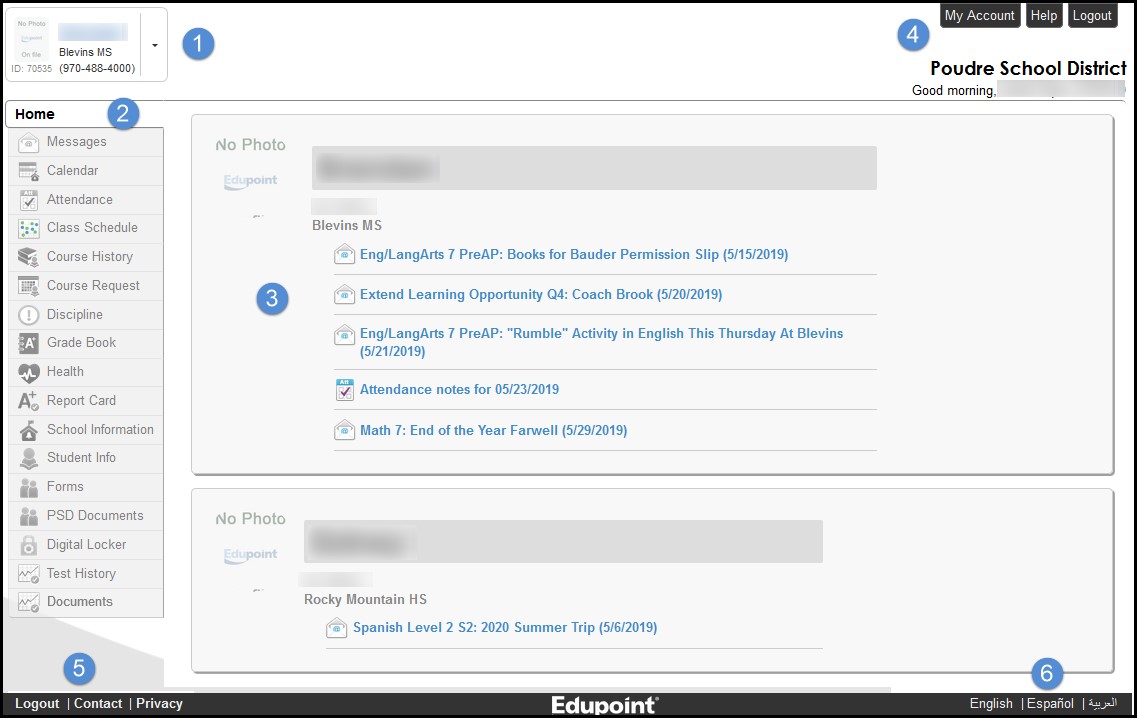
- Use the focus menu to select one of your children to see their specific information.
- The navigation bar contains links to records for the child. Some menu items might have been disabled by the school. Please contact your school if you have any questions about the information you see in ParentVUE.
- Recent events include attendance notes, and messages from teachers. Click on a link for more detailed information.
- The “My Account” tab contains the parent’s account information. A parent can change their name and add or remove phone numbers and email addresses. Parents of secondary students can choose to receive an attendance notification for unexcused absences. Elementary absence notifications are not sent out through ParentVUE.
- All screens contain logout, contact, and privacy links.
- Select a language at the bottom of the ParentVUE screen.
Messages
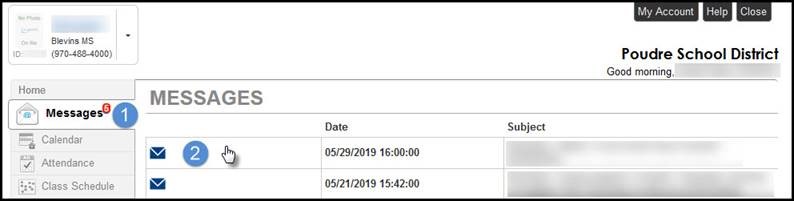
- The number of unread messages displays on the navigation bar.
- Click on the message row to view the details.
Messages posted here will also arrive in the emails you provided during the account creation process.
Calendar
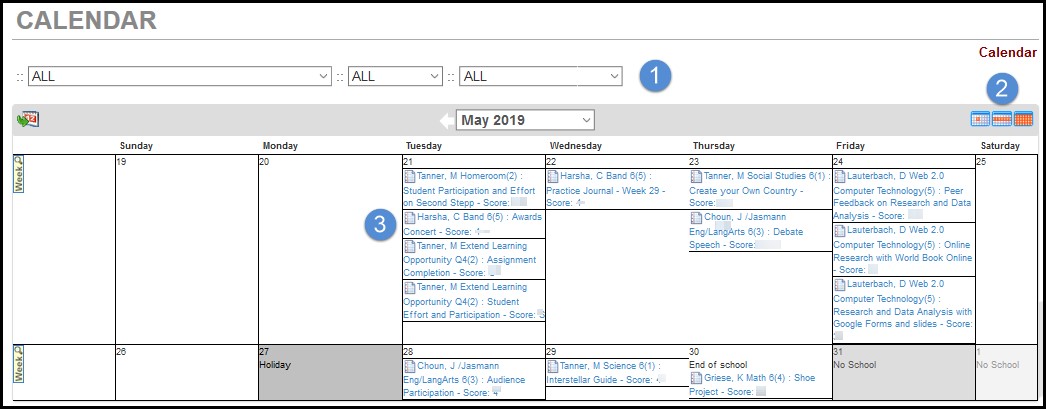
- The school calendar lists class assignments and school holidays. Use the options at the top of the calendar to filter the information displayed by Teacher/Class, Assignment Type, and if assignments are Missing, Due, or Scoreless.
- Click the Day, Week, or Monthly icons to change the view.
- Click the link on the assignment to view the information associated with that assignment, including due date and points.
Attendance
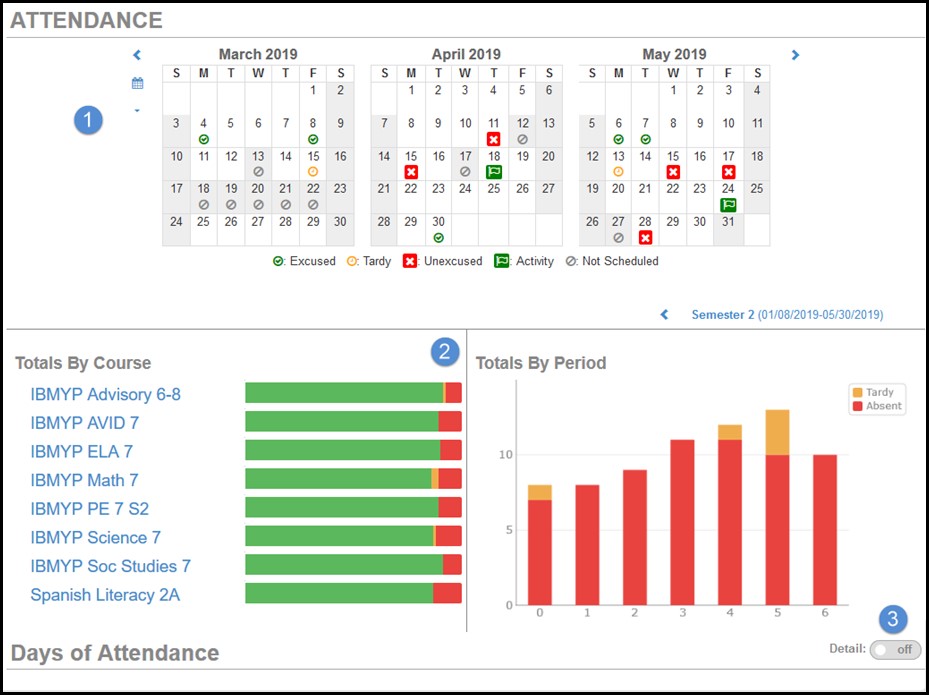
Attendance can be viewed in three areas – the Calendar view, Totals by Course, and Totals By Period.
1. The Calendar view displays a visual record of each recorded absence.
2. The Totals by Course and Period section display attendance totals by course and period.
3. The attendance total by days can be viewed by clicking the Detail button to “On” in the Days of Attendance section.
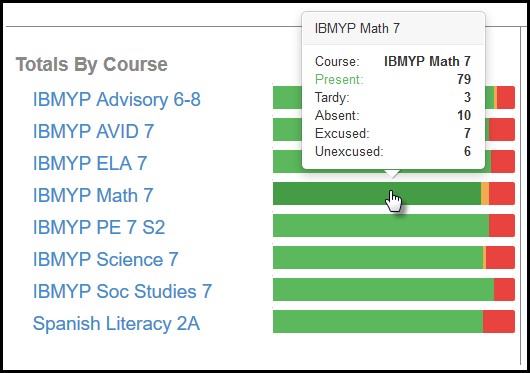
Hover over a course in the Totals By Course section to view absence details.
Reporting Absences - Parent/guardian guide
Note: This feature is optional by site and may not be available in all PVUE accounts or for each student within a PVUE account.
What is the ParentVUE Report Absences feature?
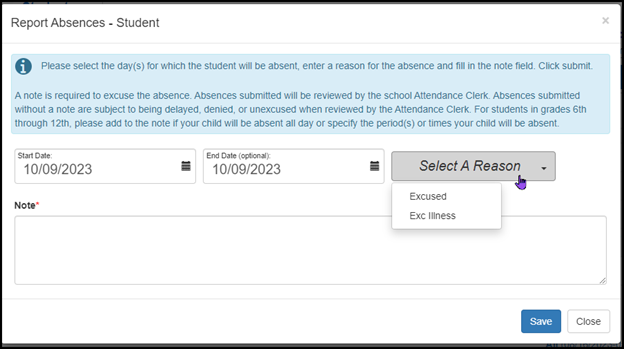
If you see this option for your student, that means the school has opted to use ParentVUE Report Absences functionality. Parents can submit attendance for a single date or range of dates by clicking on ‘Report Absences’ from the PVUE home screen; a note is required to excuse the absence. Absences submitted will be reviewed by the school attendance clerk. Absences submitted without a note are subject to being delayed, denied, or unexcused when reviewed by the attendance clerk. Schools may take up to 24 hours to process absences. Future absences are not visible in PVUE until the date of the absence.
Why would I enter attendance in ParentVUE?
If a student is not going to be logged in and/or attending school for a day or series of days, in any phase of instruction, the parent has the ability to document this absence in PVUE instead of making a call and leaving a voicemail to the attendance clerk. Once saved in PVUE, the attendance mark will then be reviewed by the attendance clerk.
As a parent, how do I report absences for my student?
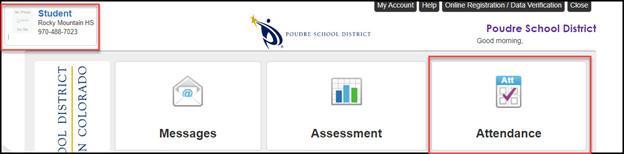
1. Log in to ParentVUE
2. Focus to the student for which you are entering attendance
3. Click on the Attendance tile.
4. Click on the Report Absence
5. Select a Reason for attendance mark of Excused or Exc Illness
6. Fill in the require Note field of details for the absence
7. Click Save
Step-by-step directions with screenshots:
Log in to ParentVUE
Click on Report Absence (for schools that have this feature turned on)

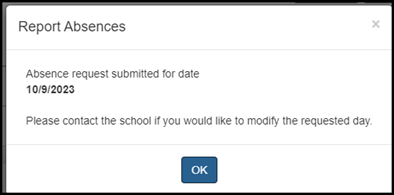
Once submitted the parent/guardian will get this response: