



ParentVUE / StudentVUE Menu Information:
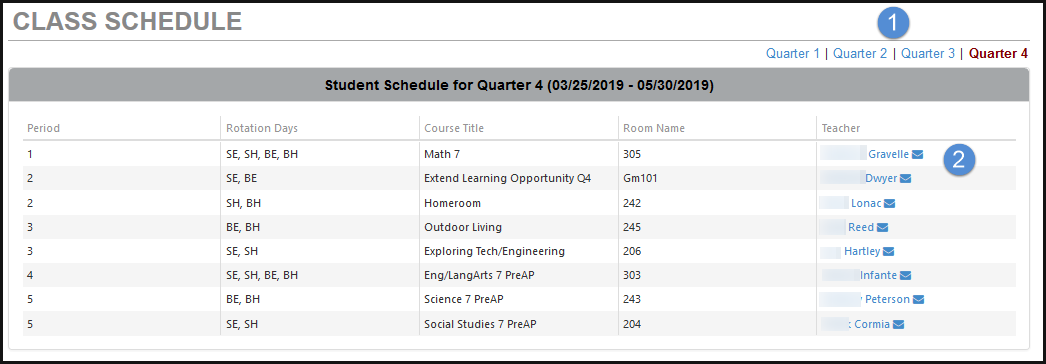
Class Schedule
The Class Schedule lists the period, course title, room name, teacher name, and for some secondary schools, meet days.
- To view a different term, click on the term at the top right of the Student Schedule box.
- Send an email to your students’ teacher by clicking on the envelope next to the teachers’ name.
Course History
Information about transcripts, current and previous grades, GPA, and graduation status is displayed under Course History.
1. The Graduation Status section provides detailed credit and test requirement information, if appropriate to the students’ graduation requirements.
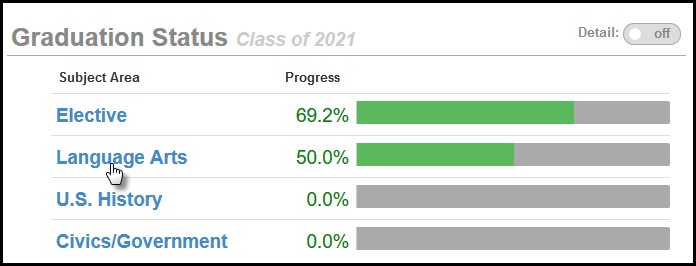
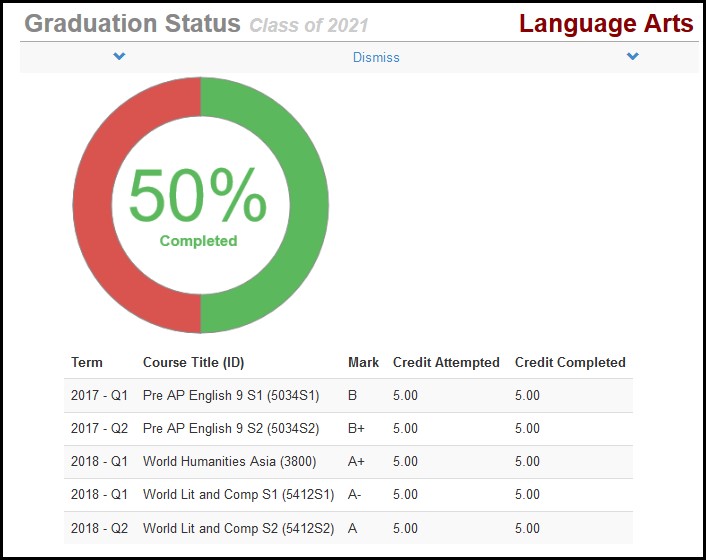
2. Click on an individual Subject Area to display courses completed or in progress that will meet that subject area requirement.
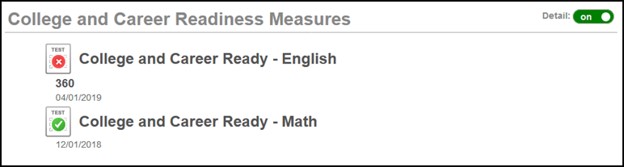
3. The College and Career Readiness Measure section provides information on the two measures the students need to complete. The red circle indicates the student has Not Yet Met that measure. The green circle indicates the student has Met that measure. A student who Met the measure using a State-Approved Assessment, will have a numerical score. A student who Met the measure using a College and Career Readiness Measure, will not have a numerical score.
4. Select "Detail" in the Student Course History section to display the mark earned, credit attempted, and credit completed for all courses completed at PSD elementary, middle, and high schools.
Grade Book
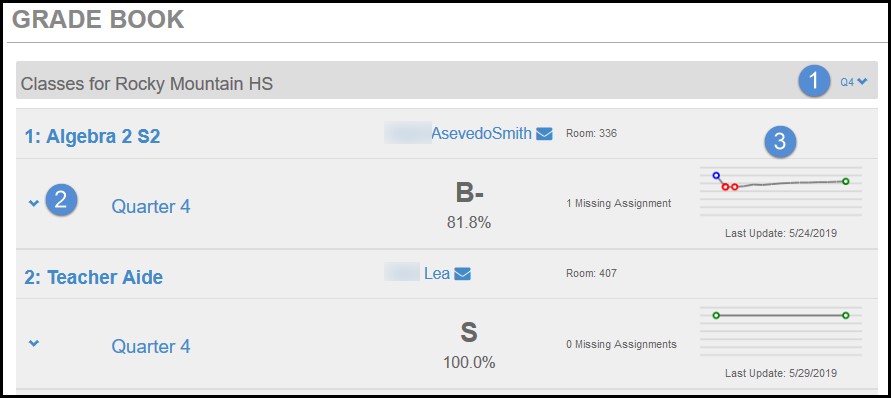
The Grade Book summary screen shows grades for each grading period and progress period.
- To view the student summary, click any available progress period.
- To view the Total and Upcoming Assignments for each class, click on the chevron.
- The Grade History Chart shows trends in overall grade for the class. Green is the current value, blue is the highest overall grade and red is the lowest overall grade earned. To see additional details about the class, click on the "Class Title," highlighted in blue.
The assignment view displays:
- The student’s overall grade
- To see other classes' Assignment View, select the class from the drop down box at the top of the screen.
- Category Weighting chart - categorizes your students’ grade by each assignment type.
- Standards View (if available) - click on Standards View at the top right corner to see the overall grade for each standard. Click on the name of the Standard to view the assignments and assessments correlated to that standard.
- Assignment details - click on the blue text for the assignment. The Assignment Details has more information regarding the assignment including the type of assignment, the assignment due date, score earned, any resources associated with the assignment, and notes entered by the teacher.
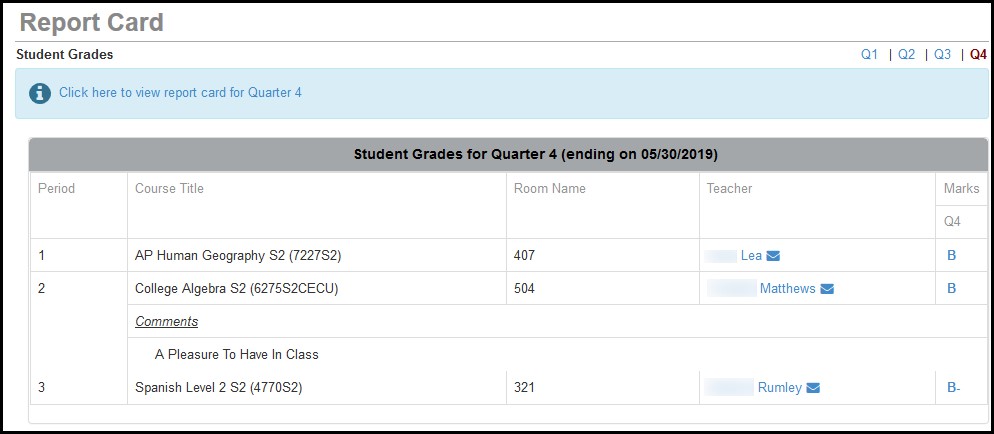
Report Card
The Report Card page displays the current grades posted. When the Report Card has been posted, a link will display in the upper left hand corner.